Authorizing your WhatsApp Business integration is a guided process—helping you quickly connect your business account, set up your profile, and ensure customers can reach you with ease. When adding your WhatsApp phone number you can choose how you wish to be identified when sending messages.
- Use a display name only - When selected, WhatsApp generates a virtual number for your messages. You cannot initiate or receive calls or text messages. WhatsApp only shows your display name in chats.
- Add a new number - When selected, WhatsApp shows an active number for customers to communicate with. You must have access to verify the number via either a Text message or Phone call.
Note: To keep communication simple and professional for your customers, we recommend using the Add a new number feature.
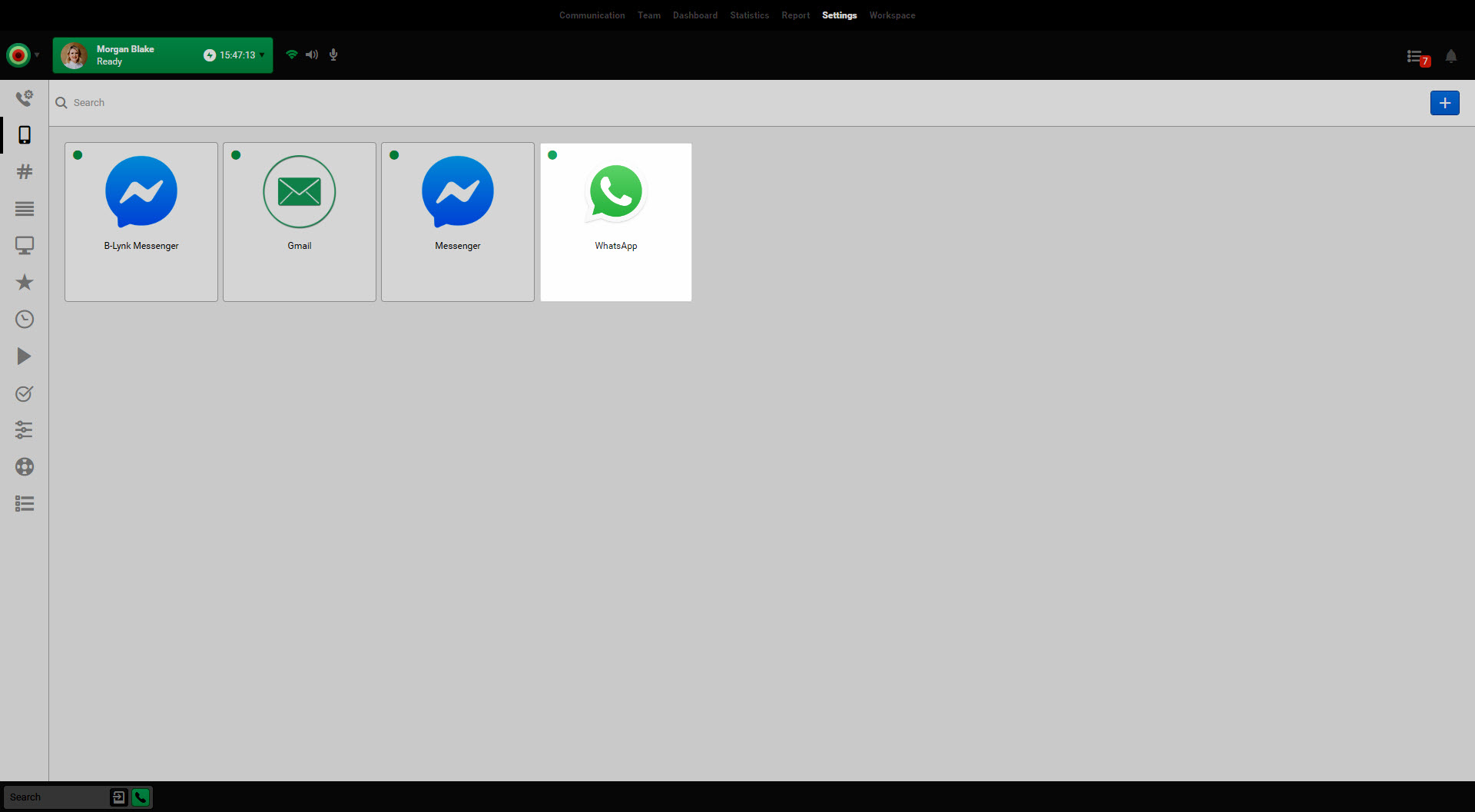
Authorize WhatsApp Business by adding a new number
Use this guide to learn how to authorize your WhatsApp Business integration as an administrator by adding a new number.
- Click Settings.
- Select the mobile icon.
- Click the plus icon.
- Choose WhatsApp.
- Click Create to set up a WhatsApp Gateway.
- Sign in to your Facebook profile.
- Review the permissions you’ll share and click Get Started.
- Select the desired Business portfolio to connect and click Next.
- Choose a WhatsApp Business account and Create or select a WhatsApp Business profile.
- Check whether you’d like to Instruct Meta to automatically identify order and lead events.
- Click Next.
- Create a WhatsApp business profile by completing the following information.
- Enter a WhatsApp Business account name. This name is only shown and used internally.
- Set your WhatsApp business display name. Your display name is customer-facing and must match your business name.
- Select the Category that best describes your business. The chosen category is customer-facing.
- If desired, click Show more options to add an optional Business description and Website.
- Click Next.
- Select Add a new number.
- Enter the Phone number and Choose how you would like to verify your number by selecting either Text message or Phone call.
- Click Next.
- Enter your Verification code.
- Click Next.
- Review the requested access and click Confirm.
- Click Finish.
- Enter an applicable Label and click Save.

Note: You must sign in with an account that has permission to manage your company’s WhatsApp Business account.


Note: If you are using a landline, you must select Phone call.


Authorize WhatsApp Business with a display name only
Use this guide to learn how to authorize your WhatsApp Business integration as an administrator using only a display name.
- Click Settings.
- Select the mobile icon.
- Click the plus icon.
- Choose WhatsApp.
- Click Create to set up a WhatsApp Gateway.
- Sign in to your Facebook profile.
- Review the permissions you’ll share and click Get Started.
- Select the desired Business portfolio to connect and click Next.
- Choose a WhatsApp Business account and Create or select a WhatsApp Business profile.
- Check whether you’d like to Instruct Meta to automatically identify order and lead events.
- Click Next.
- Create a WhatsApp business profile by completing the following information.
- Enter a WhatsApp Business account name. This name is only shown and used internally.
- Set your WhatsApp business display name. Your display name is customer-facing and must match your business name.
- Select the Category that best describes your business. The chosen category is customer-facing.
- If desired, click Show more options to add an optional Business description and Website.
- Click Next.
- Select Use a display name only and click Next.
- Review the requested access and click Confirm.
- The system provides your reserved phone number. Customers can use this number to connect with your business through WhatsApp.
- Click Finish.
- Enter an applicable Label and click Save.

Note: You must sign in with an account that has permission to manage your company’s WhatsApp Business account.


Note: Meta needs to review your business and display name. This can take up to one business day.

Note: Adding a payment method is not required.

