Use this guide to learn how to authorize your WhatsApp Business integration as an administrator by adding a new number.
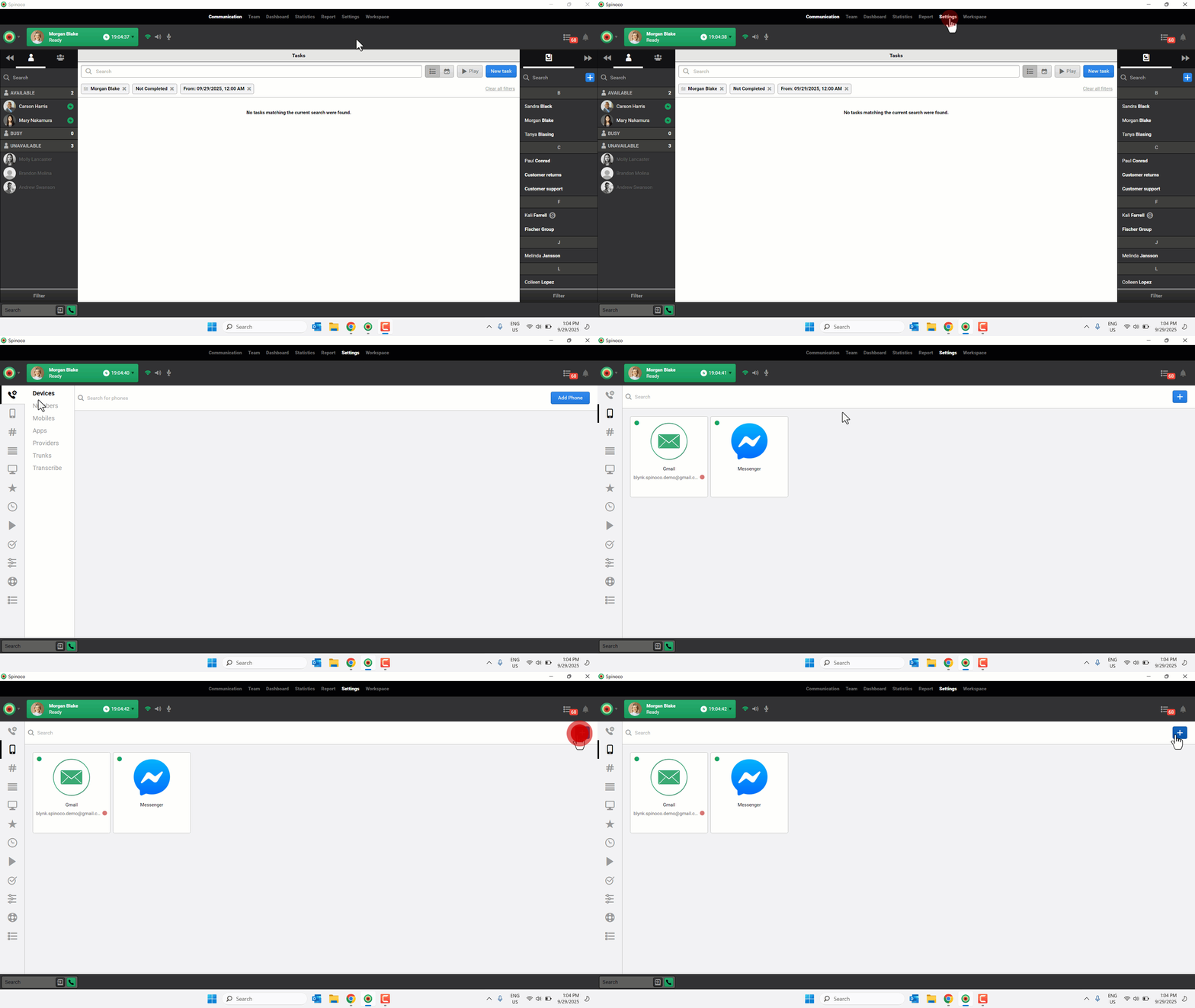
- Click Settings.
- Select the mobile icon.
- Click the plus icon.
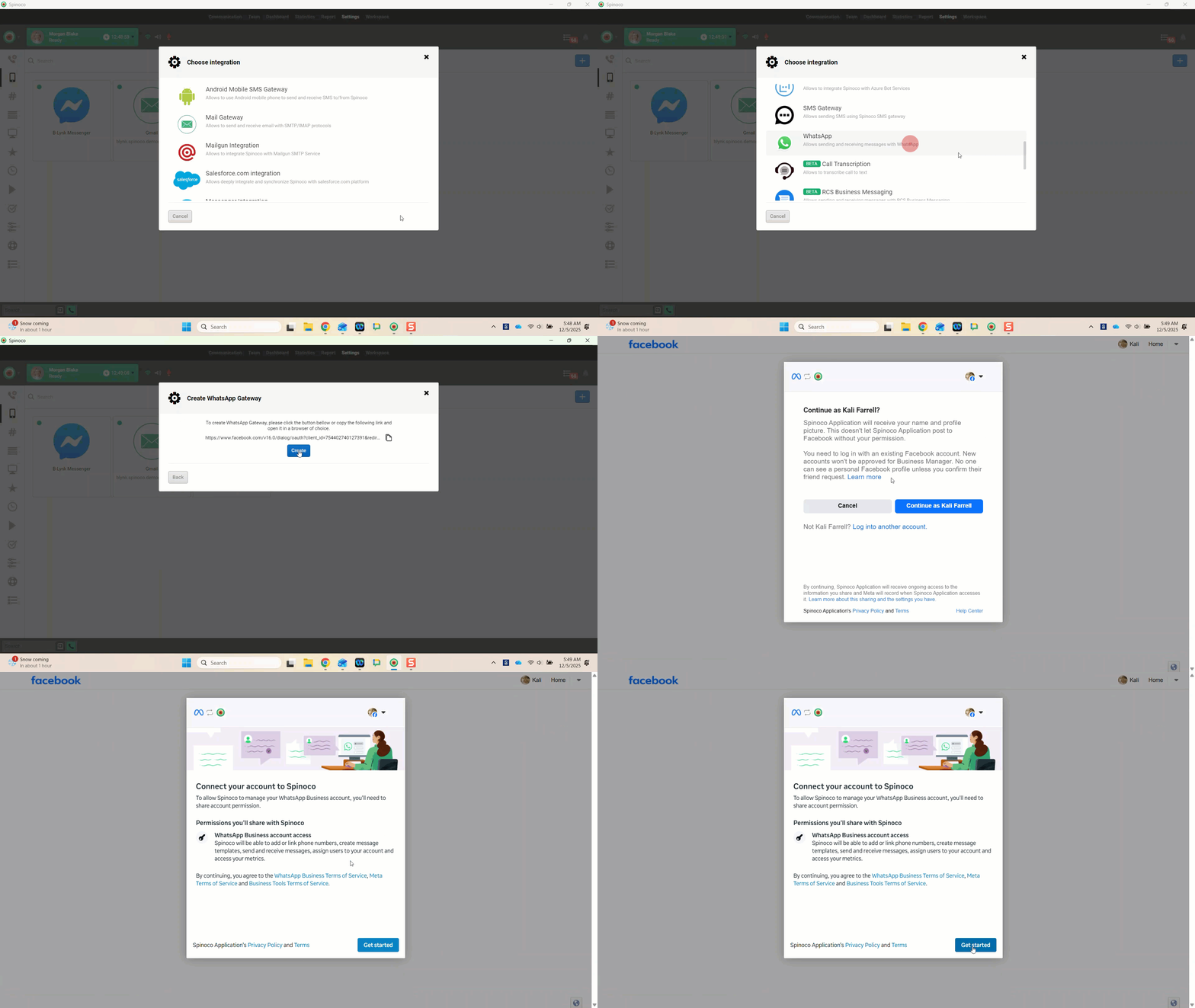
- Choose WhatsApp.
- Click Create to set up a WhatsApp Gateway.
- Sign in to your Facebook profile.
- Review the permissions you’ll share and click Get Started.
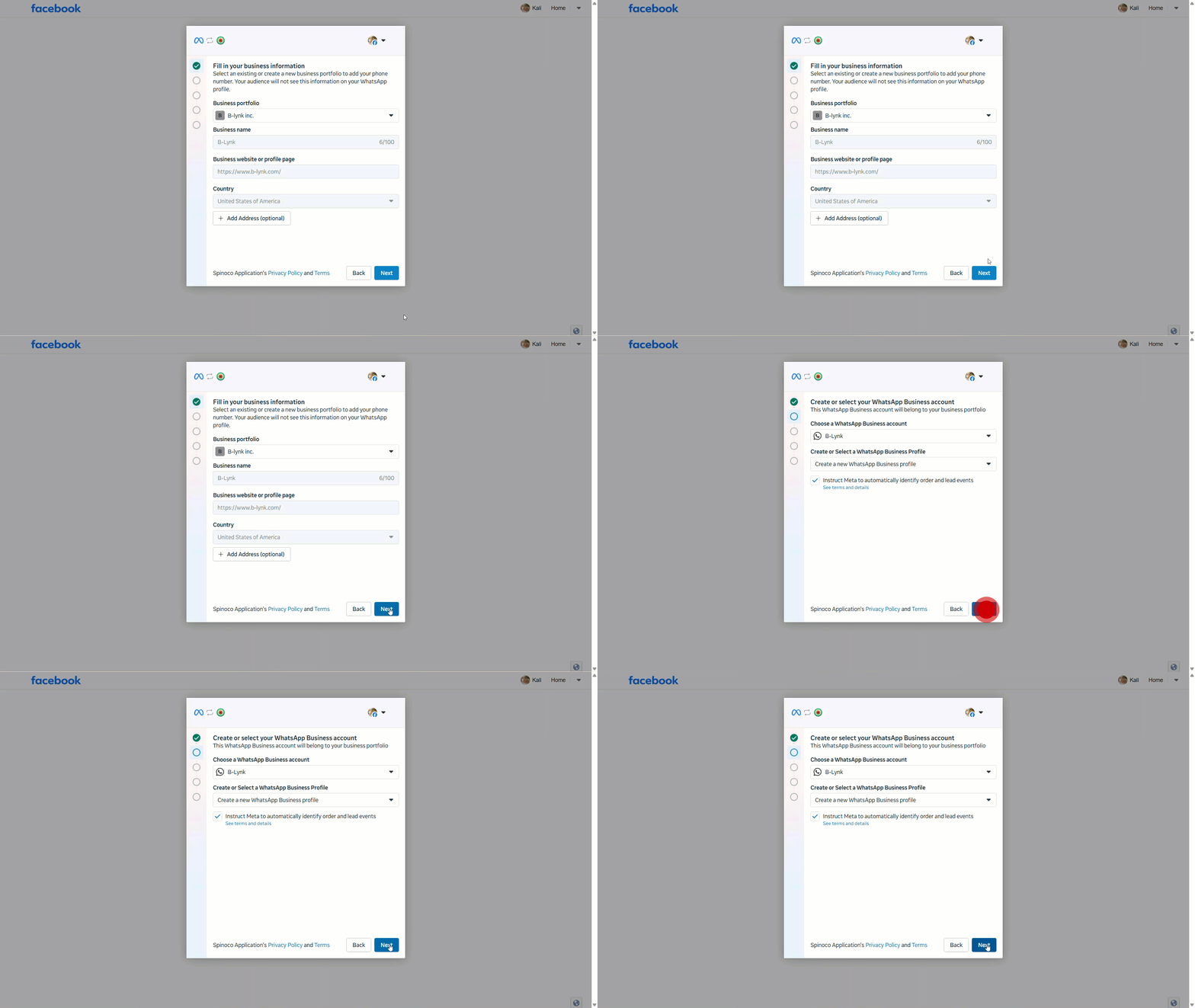
- Select the desired Business portfolio to connect and click Next.
- Choose a WhatsApp Business account and Create or select a WhatsApp Business profile.
- Check whether you’d like to Instruct Meta to automatically identify order and lead events.
- Click Next.
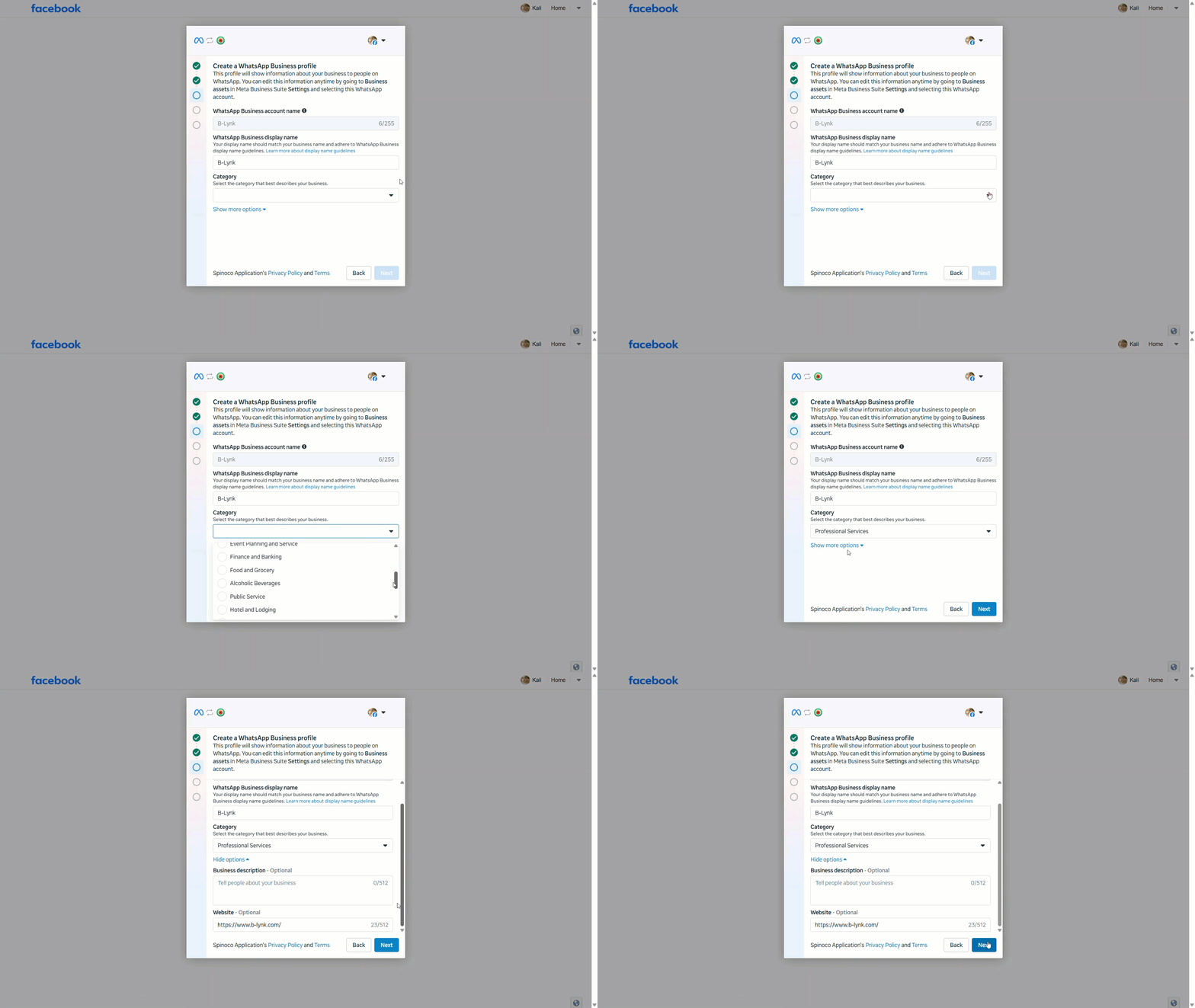
- Create a WhatsApp business profile by completing the following information.
- Enter a WhatsApp Business account name. This name is only shown and used internally.
- Set your WhatsApp business display name. Your display name is customer-facing and must match your business name.
- Select the Category that best describes your business. The chosen category is customer-facing.
- If desired, click Show more options to add an optional Business description and Website.
- Click Next.
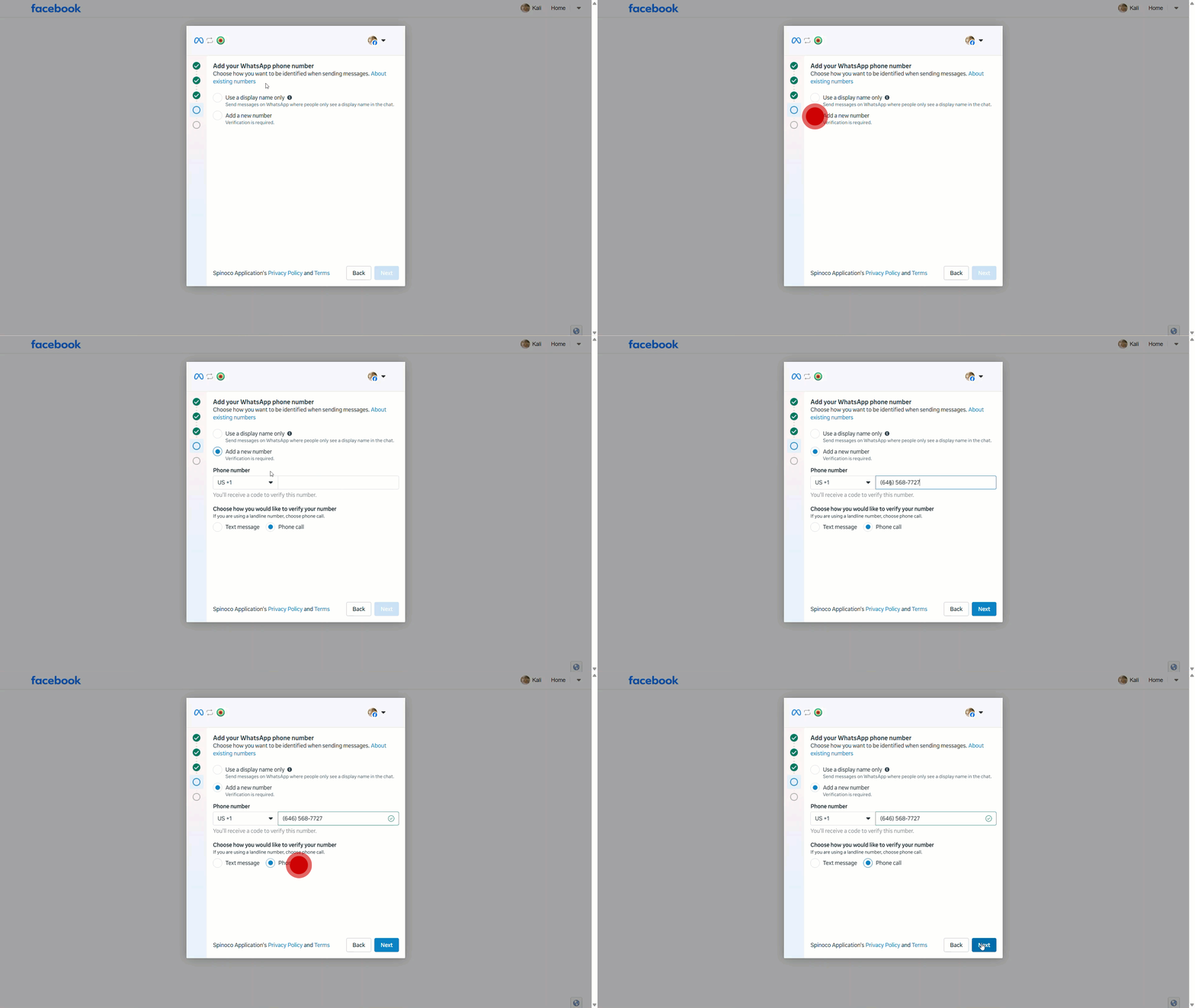
- Select Add a new number.
- Enter the Phone number and Choose how you would like to verify your number by selecting either Text message or Phone call.
- Click Next.
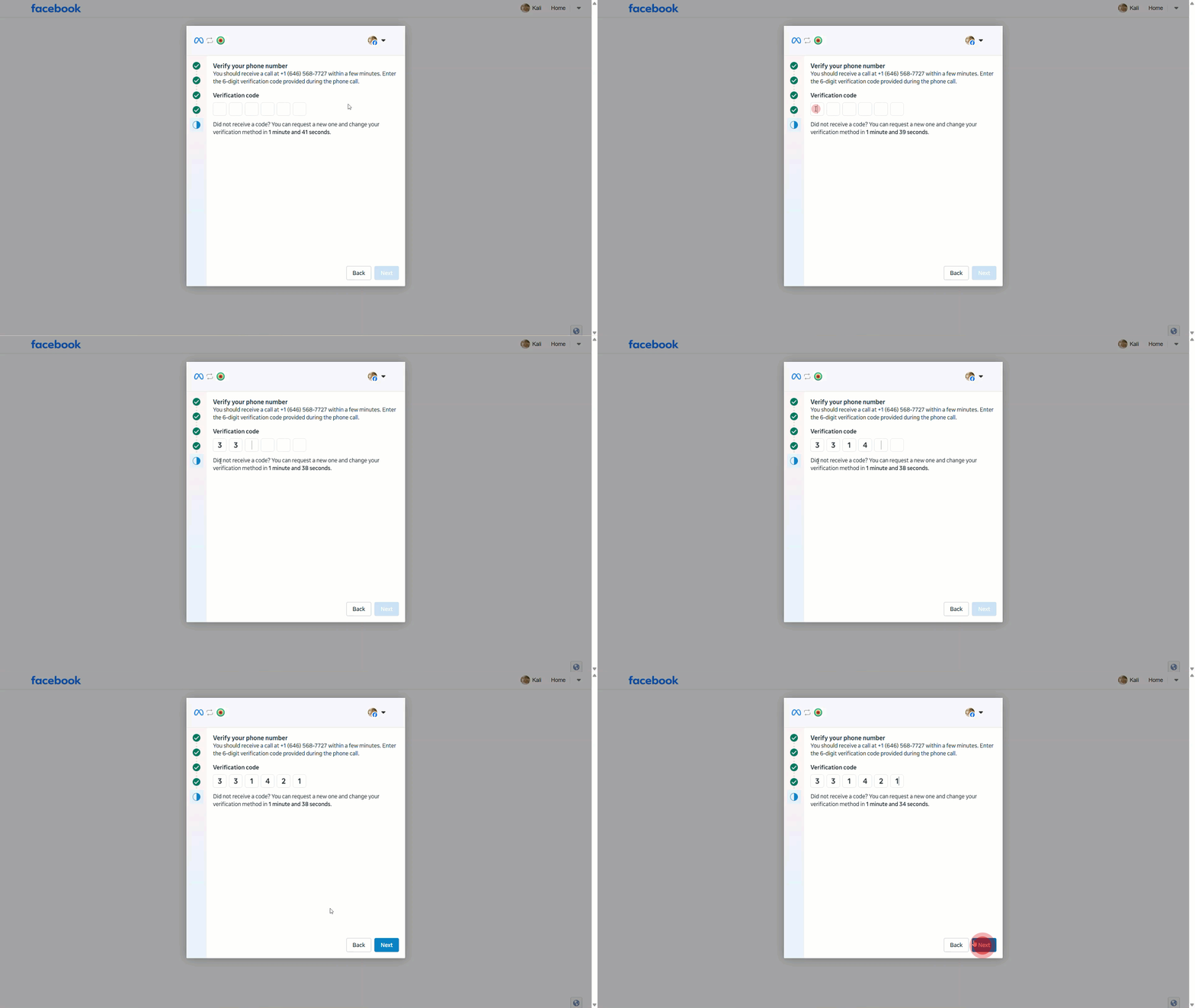
- Enter your Verification code.
- Click Next.
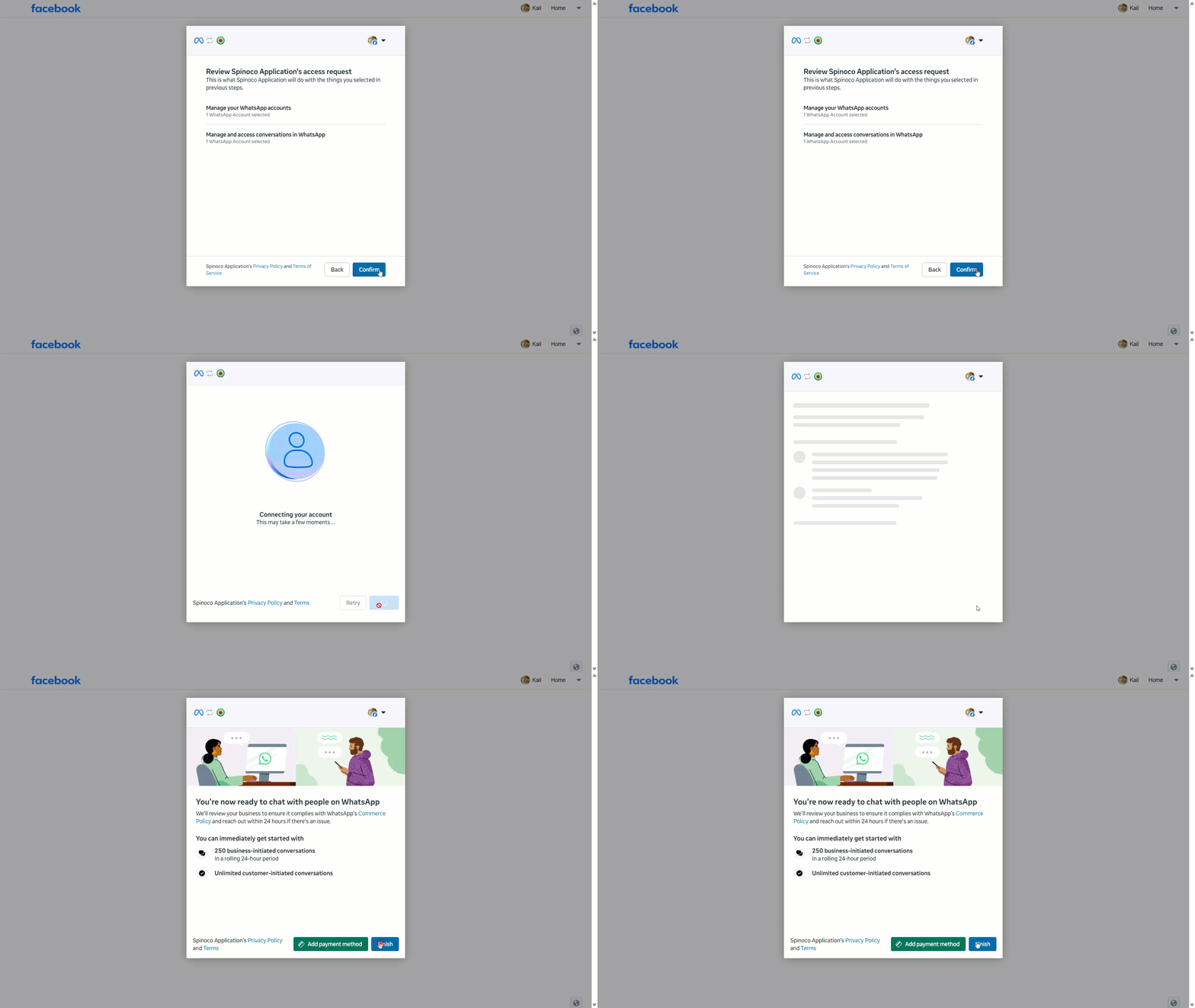
- Review the requested access and click Confirm.
- Click Finish.
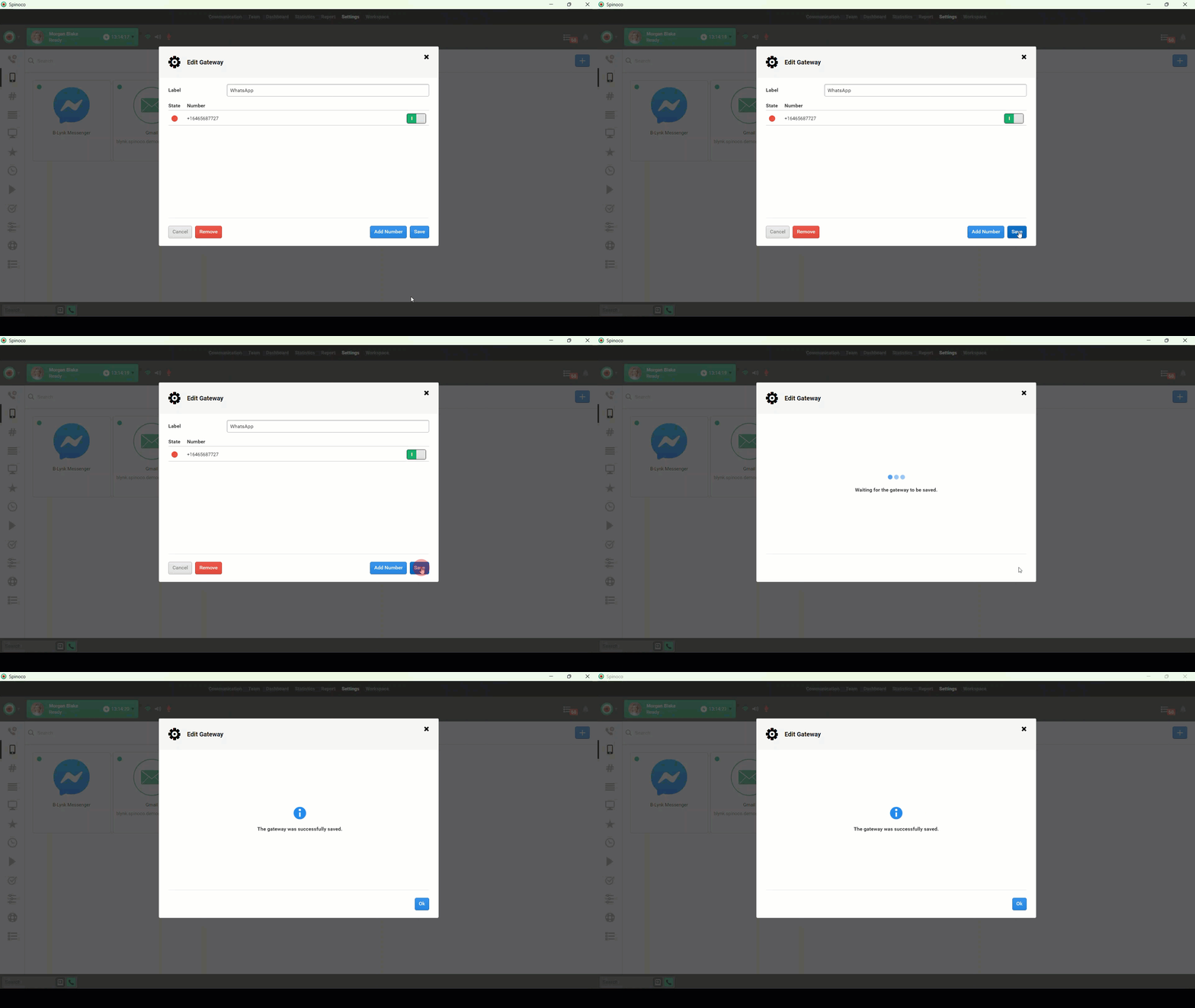
- Enter an applicable Label and click Save.
Note:You must sign in with an account that has permission to manage your company’s WhatsApp Business account.
Note: If you are using a landline, you must select Phone call.