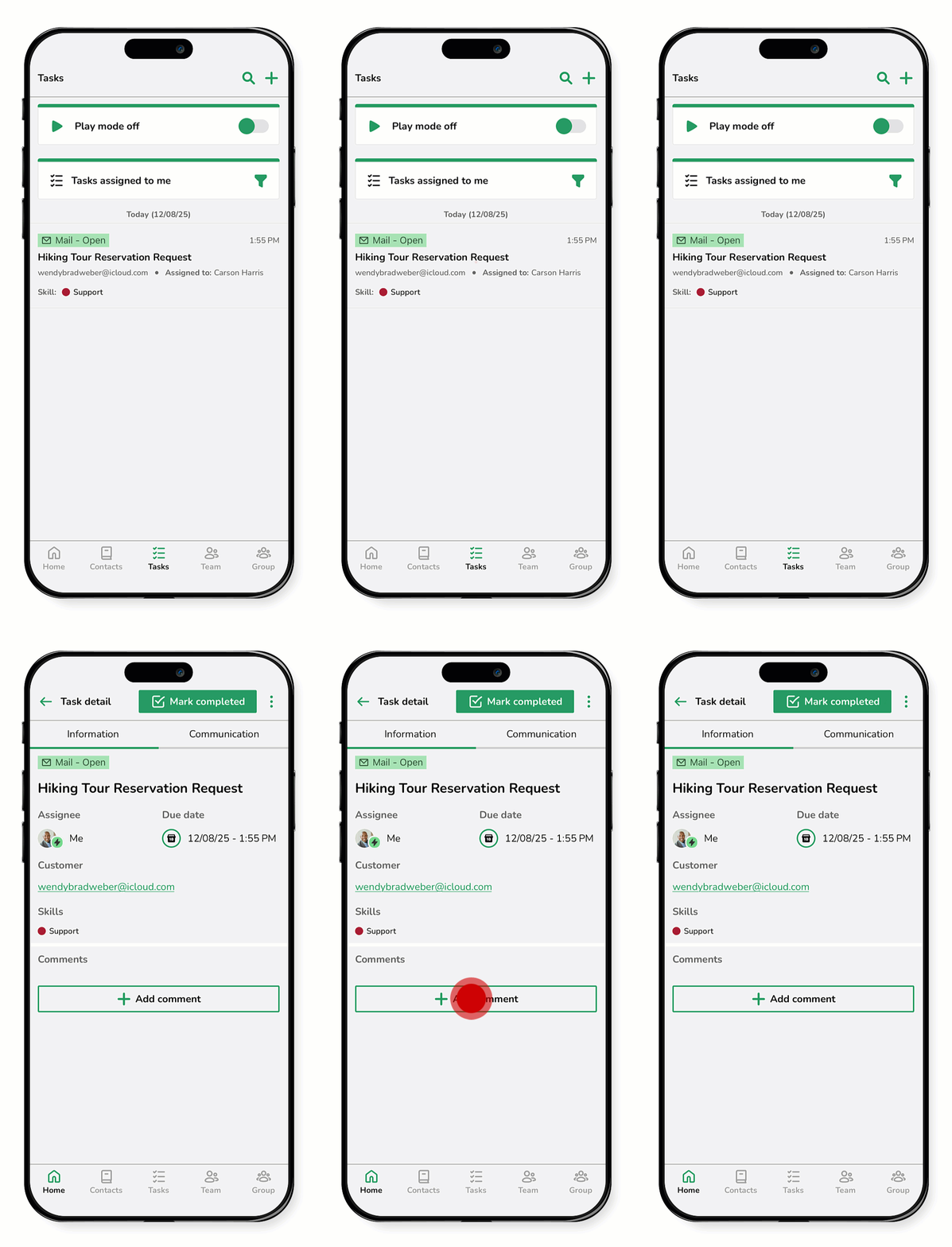
When emails arrive in shared inboxes like support, sales, or customer service, Spinoco automatically creates tasks so every message gets a timely reply. This keeps everything organized and ensures no emails are missed.
Email tasks are especially useful for teams that need to track responses and collaborate on messages.
Tip: If you’re new to tasks, check out the Overview of task management guide to learn the basics.
Use this guide to learn how to manage email tasks.
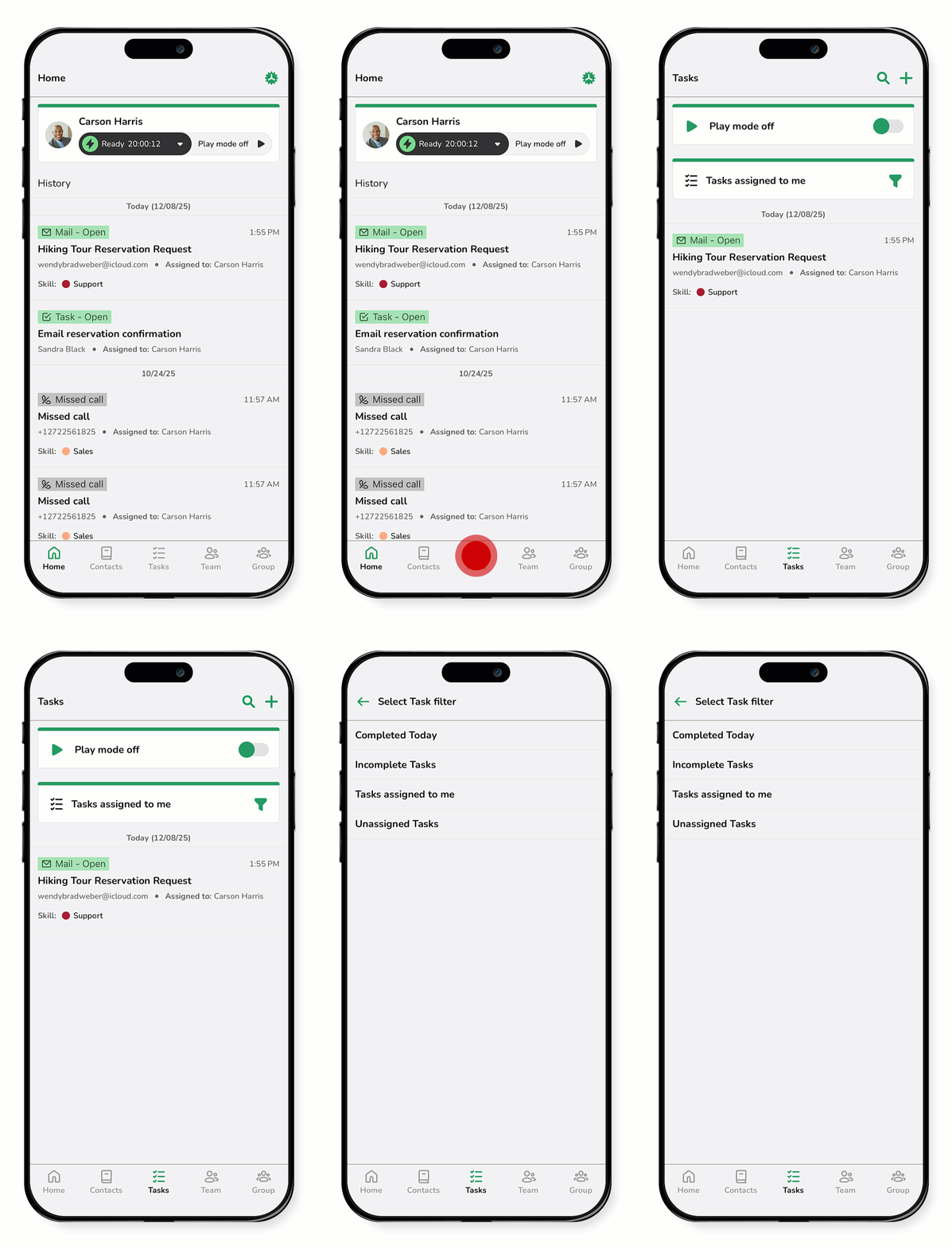
- Go to Tasks.
- If necessary, tap the filter icon
 to select the desired filter.
 - Open the email task.
- Review the task details. In the Information view, you see key details:
- Task name
- Assignee
- Due Date
- Customer
- Skills
- Description
- (Optional) To collaborate with your team, tap Add comment, enter your message, and tap Send.
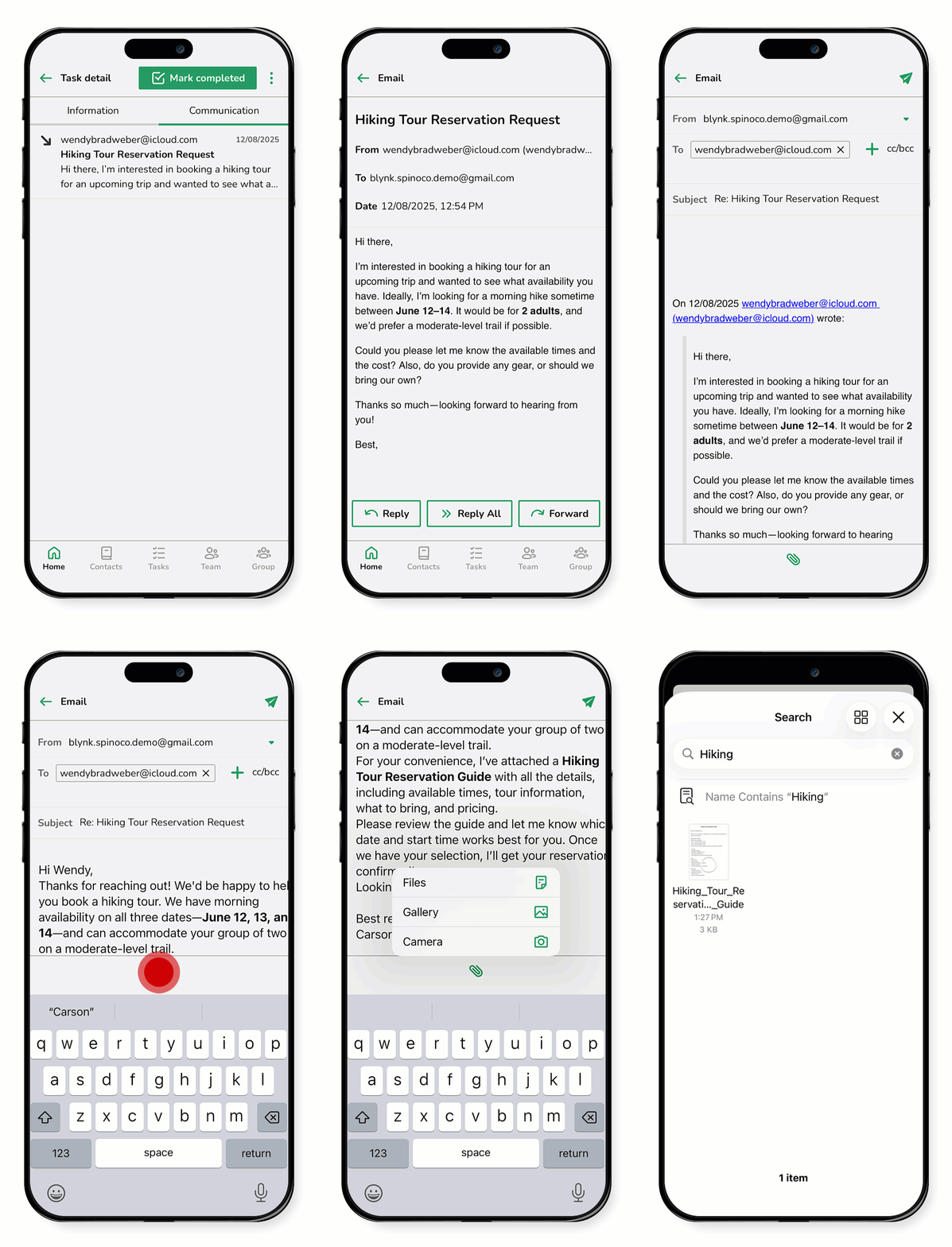
- To view the email, tap the Communication tab.
- Tap the email thread. Here you can Reply, Reply All, or Forward the message.
- Enter your reply.
- (Optional) Tap the Attach icon to add a file or media to the message. Browse your device and select the file you want to attach.
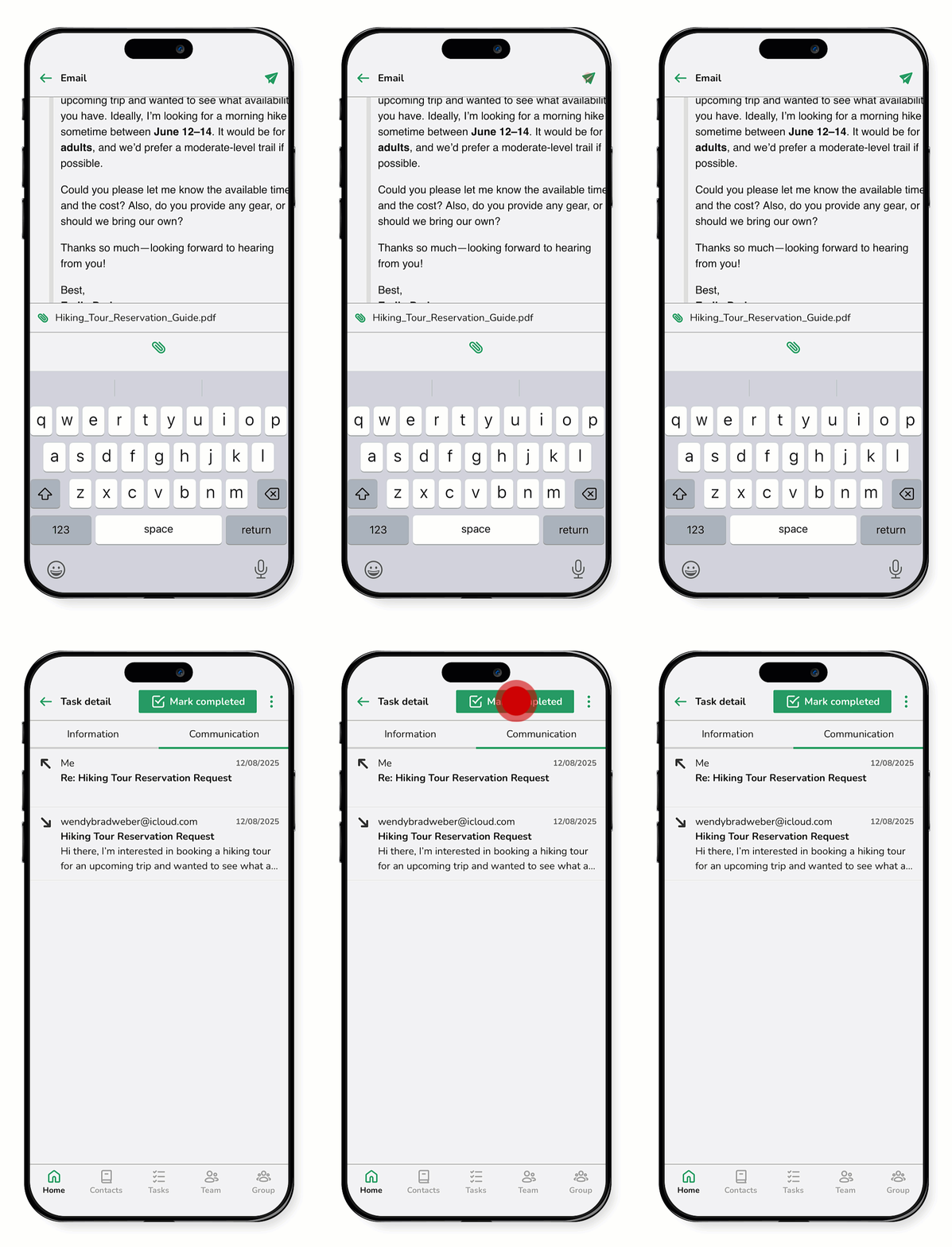
- Once your email is complete, tap the Send icon.
- When the task is done, tap Mark complete.
- Create a follow-up task (if needed).
- If there’s a suggested action, tap Follow up, to create a new task.
- If no suggested actions appear, but you still need to follow up, click the more options icon
 >
Create follow up, and proceed to create a task manually.
>
Create follow up, and proceed to create a task manually.
Note: Comments are internal and never visible to the customer. You’ll get a notification if someone replies.