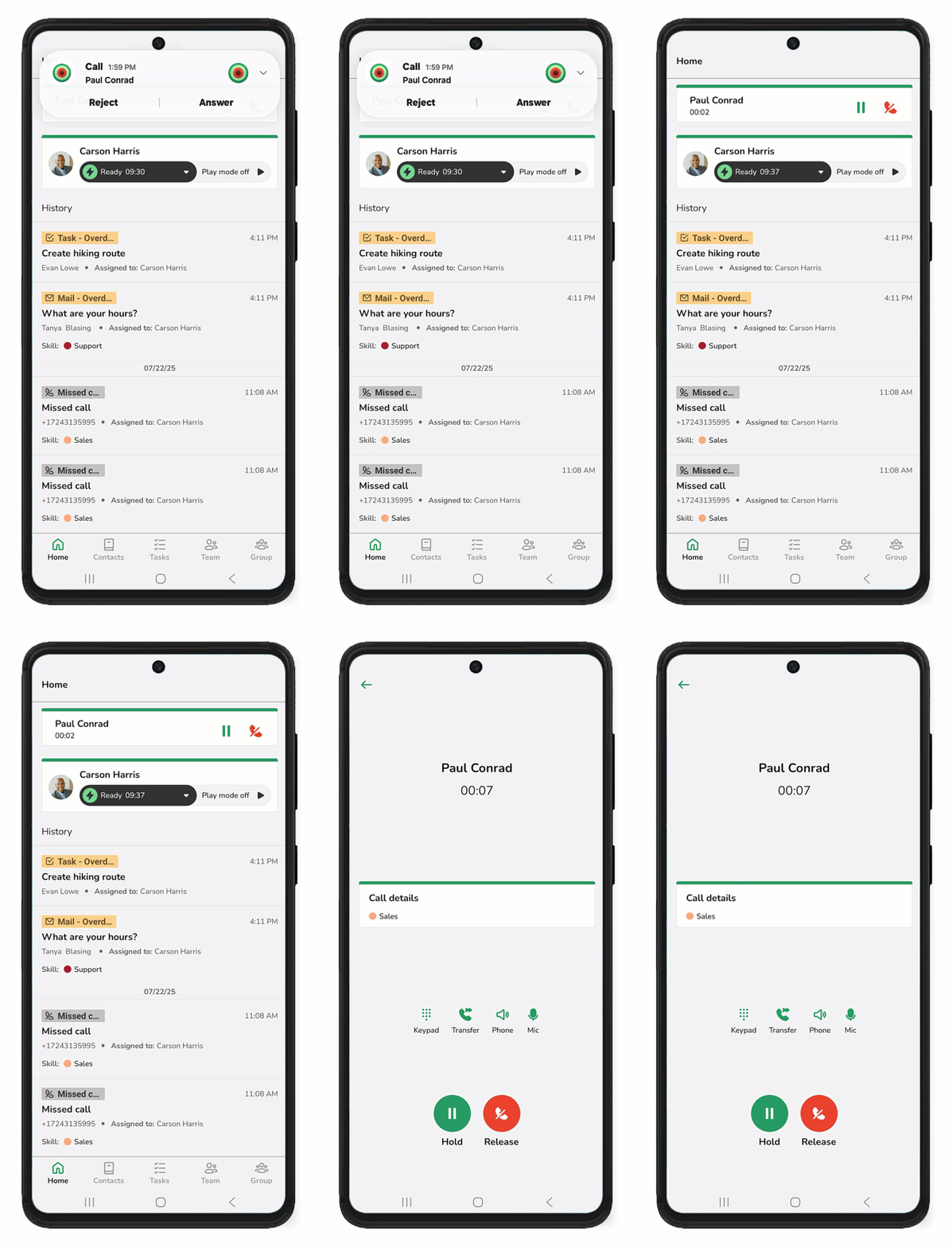
Incoming calls appear based on your device’s standard interface when supported. iOS users see the native iOS call interface, while Android users see a call notification that may look different from the native Android call interface.
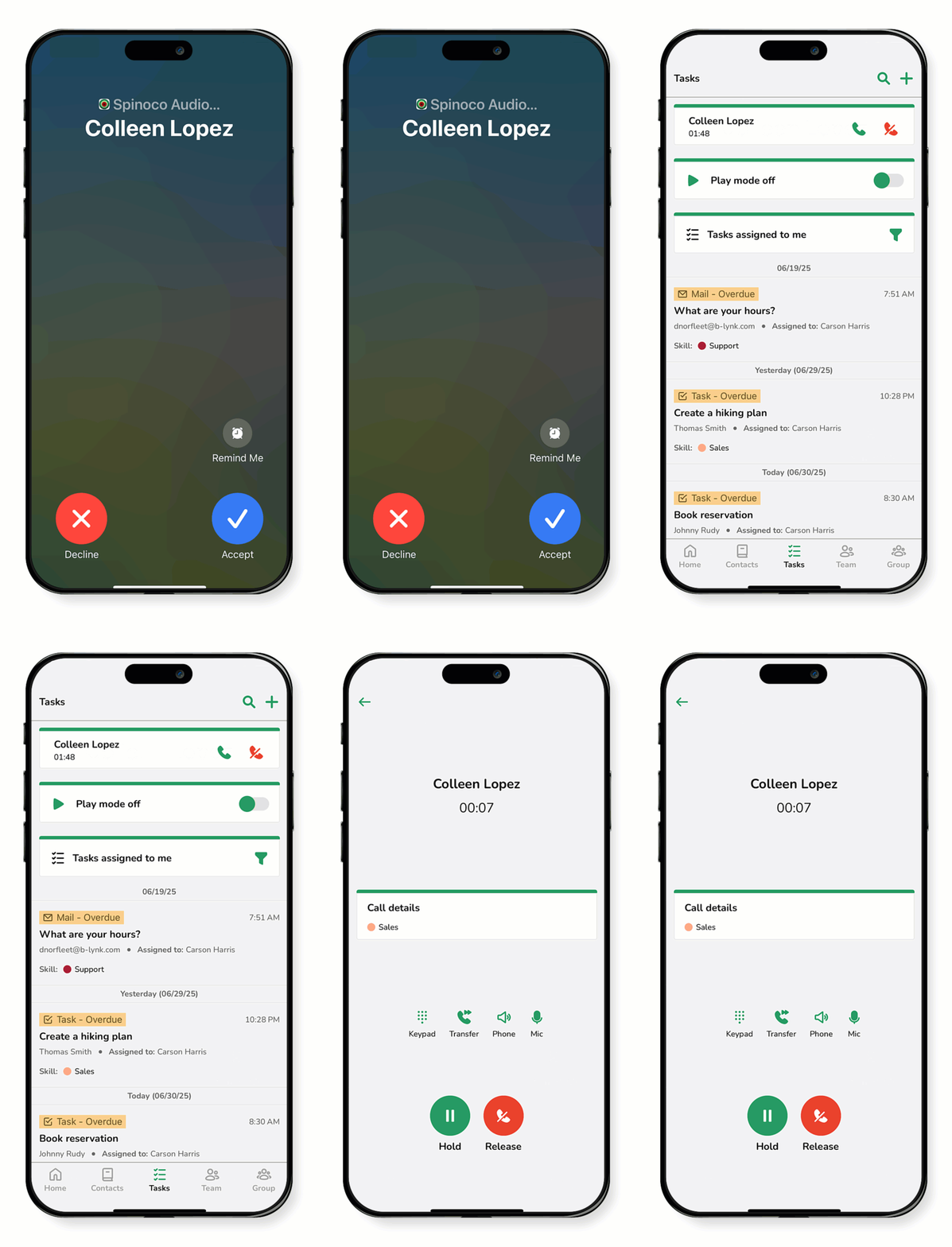
Answer a call on an iOS device
- When a call comes in, Spinoco Audio appears at the top of the screen.
- Answer the call as you normally would on your device.
- Once the call connects, the Spinoco app opens automatically.
- Tap the live call to access additional options, such as:
- Hold – Plays hold music for the caller.
- Keypad – Opens the dial pad so you can enter numbers during the call.
- Transfer – Sends the call to another team member.
- Phone – Switches between your phone’s earpiece, speaker, or Bluetooth device.
- Mic – Mutes or unmutes your microphone during the call.
- To end the call, tap Release.
Answer a call on an Android device
- When a call comes in, Spinoco Audio appears at the top of the screen.
- Answer the call as you normally would on your device.
- Once the call connects, the Spinoco app opens automatically.
- Tap the live call to access additional options, such as:
- Hold – Plays hold music for the caller.
- Keypad – Opens the dial pad so you can enter numbers during the call.
- Transfer – Sends the call to another team member.
- Phone – Switches between your phone’s earpiece, speaker, or Bluetooth device.
- Mic – Mutes or unmutes your microphone during the call.
- To end the call, tap Release.