
There are two ways you can reset a forgotten password. The first is directly in the Spinoco app and the other is through the Spinoco website.
From the desktop app
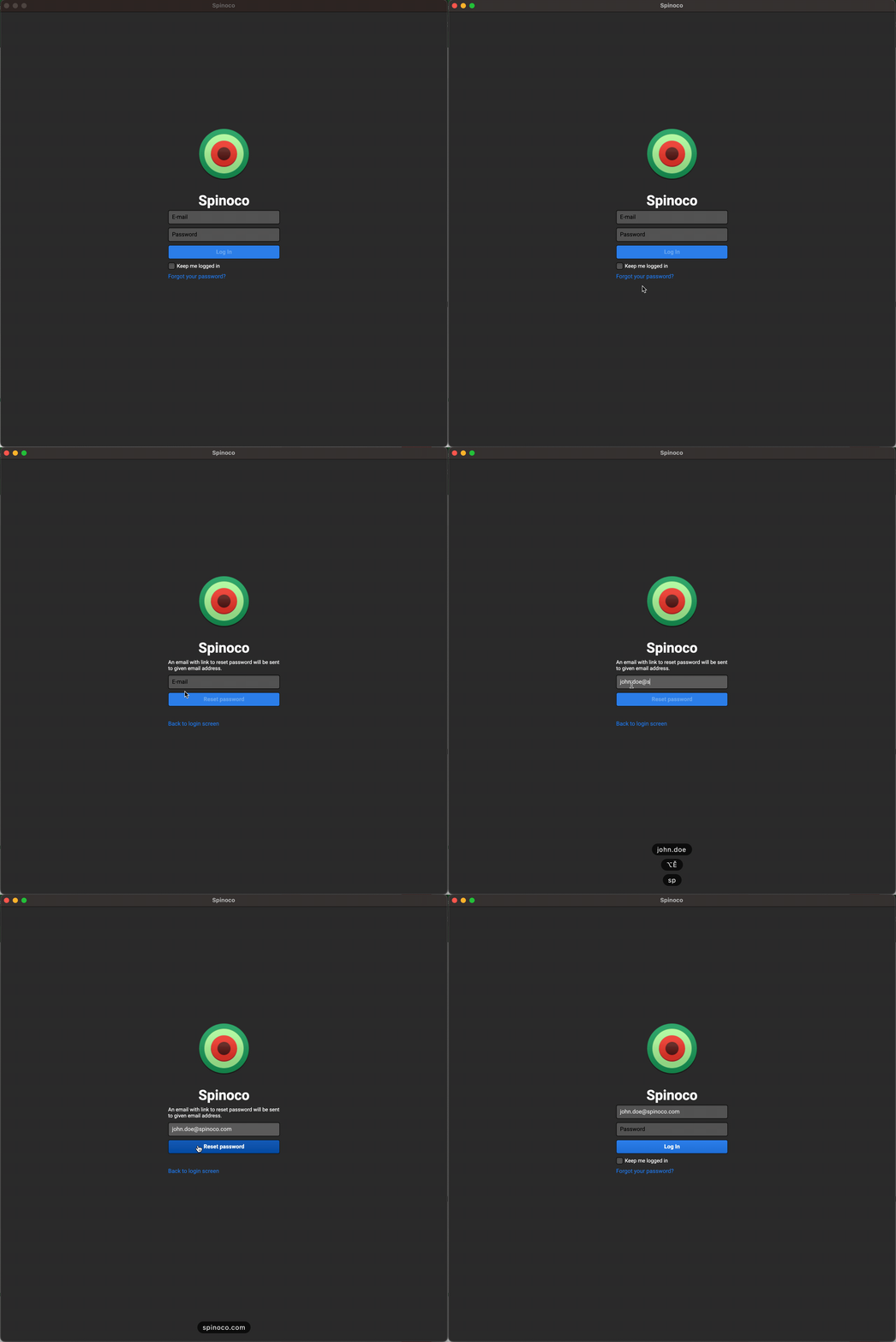
- From the app login screen, click Forgot your password?.
- Enter your email address and click Reset password. An email is sent to your login email address to set a new password.
- Open the email and click the Set new password link. You're taken to the Spinoco website.
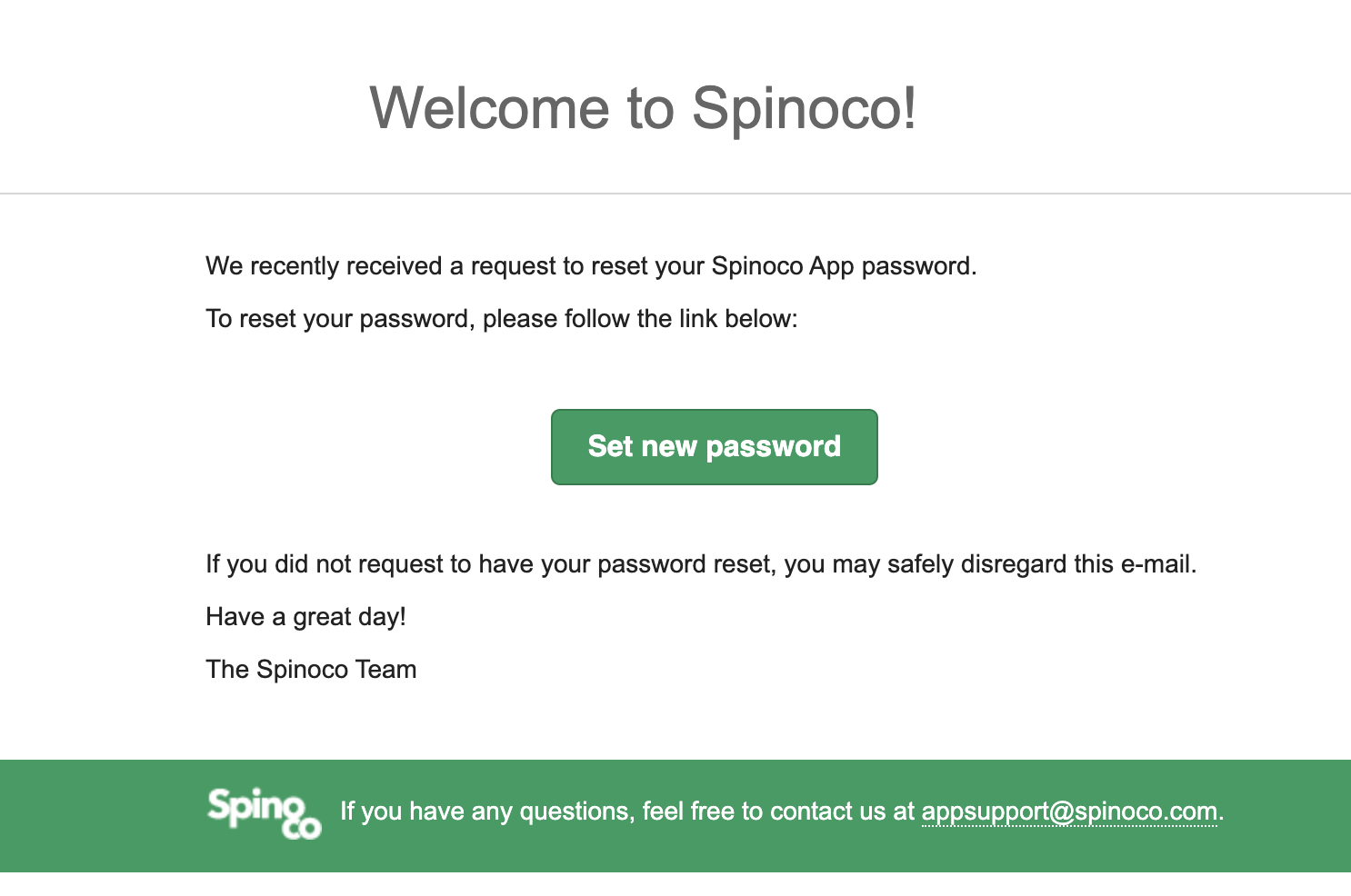
Note: For security reasons, the link in the email is only valid for 1 hour from the time sent.
- Enter the new password twice and click Save.

- A confirmation message appears stating your password was successfully set.
From Spinoco's website
- Go to https://spinoco.com/en/for-existing-users.
- Scroll to the Forgot your password? section and click Reset password.
- Enter your email address and click Reset password. An email is sent to your login email address to set a new password.

- Open the email and click the Set new password link. You're taken to the Spinoco website.
Note: For security reasons, the link in the email is only valid for 1 hour from the time sent.
- Enter the new password twice and click Save.
- A confirmation message appears stating your password was successfully set.